 Open Historia
Connecting an AI Provider
Open Historia is driven by a language model you supply. Set up Gemini, OpenAI, Anthropic, or a local model on your own machine.
Open Historia does not ship with a model and does not sell you one. You point it at a provider — a cloud API you have a key for, or a model running on your own computer — and it uses that for everything the world does.
This takes about two minutes. If you just want the shortest path: get a free Google AI Studio key and paste it in.
What the AI actually does
| Diplomacy | Every other country's leader replies to you in their own voice, and remembers what was said before. |
| Events | Each time you skip time, the model writes what happened — and those events carry machine-readable changes that move borders, units and countries. |
| Advisor | Answers questions about your own position, with charts. |
| Intelligence reports | An advisor report on any country you click. |
| Combat adjudication | Battles and their consequences are narrated and applied. |
Without a provider the game still runs — the map, the editor, saved games and the interface all work — but time skips fall back to a small set of canned events and the advisor cannot answer.
Where to put the key
The first time you open a campaign without a working model, the game asks. The Set up your AI provider prompt is the setup: pick a provider, paste your key (or, for a self-hosted model, its endpoint), optionally name a model, and press Save and play. Above the form is a short tutorial video on getting a free Gemini key — hide it if you do not need it — and a Get a key at Google AI Studio button. Open full settings takes you to the AI settings instead, and Not now puts it away for this session.
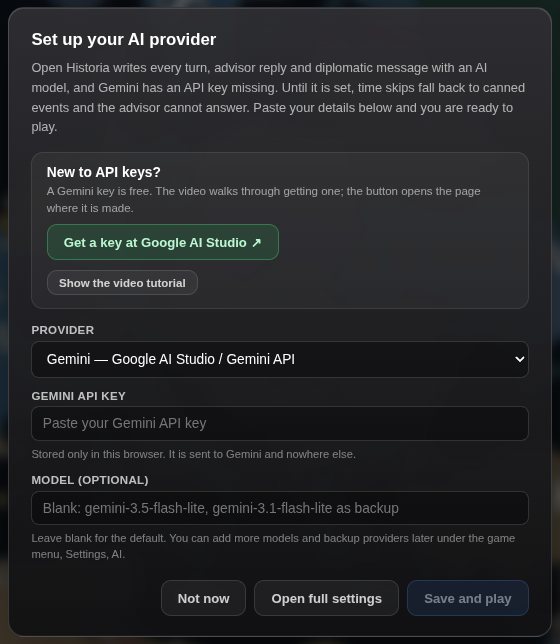 The prompt a new campaign shows when no model can answer. Saving it is the whole setup.
To change it later: ☰ → Settings → AI. That opens a list headed Models. With one model in it, it reads like the prompt: provider, a connection name, the key and the model. The rest of the screen is for backup models, and you can ignore it until you want one.
Your key is stored in your browser's local storage, or in the desktop app's own profile. It is never sent to an Open Historia server, never written to your save files, and never included in a scenario you export.
The five provider types
| Provider | What it is |
|---|---|
| Gemini | Google AI Studio's native API. The default. |
| OpenAI | The official OpenAI API. |
| Anthropic | Claude via the Messages API. |
| OpenAI Compatible | Anything that speaks /v1/chat/completions — Ollama, LM Studio, llama.cpp, DeepSeek, Groq, Together, OpenRouter, vLLM. |
| Anthropic Compatible | A self-hosted proxy speaking the Anthropic Messages API. |
Most third-party services fall under OpenAI Compatible. If a service tells you its base URL
ends in /v1 and it takes an Authorization: Bearer header, that is the one to pick.
A note on browser restrictions
Some provider APIs refuse requests made directly from a web page. On the desktop and self-hosted builds this is handled for you: the game tries the provider directly, and if the browser blocks it, it retries through a relay on your own local server. On openhistoria.com there is no relay, so a provider that refuses browser requests will not work in the hosted browser build. Gemini and Anthropic's native APIs allow direct browser access and work everywhere.
Google Gemini — free, and the quickest start
- Go to Google AI Studio, sign in, and click Create API key. It is free and needs no billing details.
- In Open Historia: the setup prompt, or ☰ → Settings → AI, provider Gemini, paste the key.
- Leave the model alone. A new Gemini key gets Google's default list:
gemini-3.5-flash-lite, withgemini-3.1-flash-litebehind it as its backup. Both are fast and have generous free-tier limits.
No Flash model is in the default list: they are the ones most often busy, and a busy model costs a turn its wait before the call moves on. Players who already had Gemini set up were switched to this list once, when it changed.
If turns feel shallow, you can put a larger Gemini model at the top of the list and keep the Flash-Lite models below it — but check the free tier's rate limits first.
Anthropic Claude
- Create a key at console.anthropic.com.
- Provider Anthropic, paste the key.
- The default model is
claude-haiku-4-5. It is the cheap, fast one; a Sonnet model gives noticeably richer diplomacy for more money per turn.
Anthropic allows direct browser access, so this works in the hosted browser build too. It is pay-per-token — there is no free tier.
OpenAI
- Create a key at platform.openai.com and load some credit.
- Provider OpenAI, paste the key. With the model left blank it runs
gpt-5.6-luna, the model the game is built around; type another name to use that instead.
Requires the desktop or a self-hosted build, because of the browser restriction above.
A local model — free, private, offline
Runs entirely on your own hardware. No key, no bill, no internet once the model is downloaded. Use the OpenAI Compatible provider for all of these.
Ollama (easiest)
- Install from ollama.com.
- Pull a model:
ollama pull llama3.2 - Provider OpenAI Compatible, endpoint
http://localhost:11434/v1— this is already the endpoint the setup prompt suggests. Leave the API key blank. Set the model to whatever you pulled, or leave it blank and the game picks a chat model from the server's own list. In Settings a new connection starts with no endpoint: press + Local Ollama under Connections and it is filled in for you.
LM Studio
- Install from lmstudio.ai, download a model through its browser.
- Open the Local Server tab, load the model, Start Server.
- Provider OpenAI Compatible, endpoint
http://localhost:1234/v1, no key.
llama.cpp
./llama-server -m model.gguf --port 8080
Provider OpenAI Compatible, endpoint http://localhost:8080/v1, no key.
Started like that, llama-server names its model after the file, so the game may remember a
path such as F:\Models\model.gguf as the model id. If you later run it in router mode,
which serves models by name, you do not need to clear that out: the game checks a remembered file
path against the names the server lists and uses the matching one. If nothing matches, it sends
the id unchanged and the server's own "not found" message tells you what it offers.
Be realistic about model size
Open Historia asks a lot of the model: it has to return strictly structured data describing territory changes, unit movements and diplomatic shifts, not just prose. Small models (3B and below) frequently fail that and you will see turns fall back to canned events. A 7–14B instruct model is a sensible floor, and larger is better. If you have the hardware, a local model is genuinely good; if you do not, the Gemini free tier will serve you better than a tiny local one.
Other cloud services
All through OpenAI Compatible — paste the endpoint, your key from that service, and a model name.
| Service | Endpoint |
|---|---|
| DeepSeek | https://api.deepseek.com/v1 |
| Groq | https://api.groq.com/openai/v1 |
| Together.ai | https://api.together.xyz/v1 |
| OpenRouter | https://openrouter.ai/api/v1 |
| DeepInfra | https://api.deepinfra.com/v1/openai |
| Fireworks | https://api.fireworks.ai/inference/v1 |
Backup models
Free tiers give each model a daily allowance, and a time skip uses several requests. When your model's allowance runs out, every AI call fails until it resets — even if another model, a paid key or a local model would have answered. So you can list backups, and the game carries on without you.
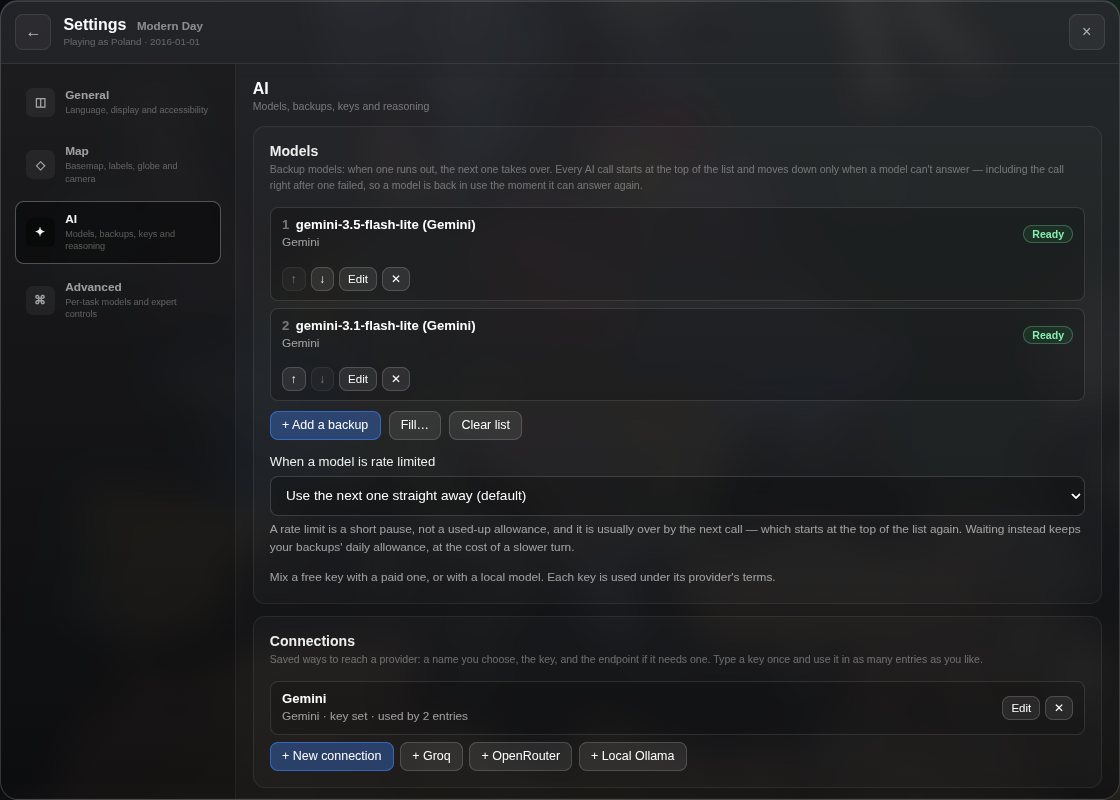 Settings → AI after pasting a Gemini key: Google's default list of two models on one connection, both Ready.
This is your Fallback list: the Models section of Settings → AI, and the name error messages use for it. Each entry in it is one model on one connection. Every AI call starts at the top and uses the first entry that can answer — including the call right after one failed, so a model is back in use the moment it can answer again. It moves down only when one can't: its allowance has run out, its key or name is wrong, or it is busy. The list can mix providers. A typical list is a few Gemini models on your free key, strongest first, then a paid key or a local model at the bottom.
The game never spreads calls across the list to get more use out of it. The top model answers whenever it can.
Adding backups
- + Add a backup adds an entry below the others and opens it. Pick its connection and type a model. The model box suggests models you have used recently.
- Fill… builds the entries for you. Tick the connections to use, type models strongest first, one per line, and press Fill. You get every model on every ticked connection, strongest model first across all of them: the first model on each connection, then the second, and so on. Entries you already have are skipped, so pressing it twice does no harm.
- Clear list removes every entry, after asking. Your connections and keys are kept, so Fill can rebuild it. Until you add a model again, the game can't write turns or replies.
- On each entry, ↑ and ↓ move it, Edit opens it and ✕ removes it.
An entry's model can be left blank. On OpenAI and OpenAI Compatible the game then picks a chat model from the server's own list; the other providers use their built-in default. Under This model only, an entry can have custom parameters of its own, which replace its connection's, and its own How the AI answers setting — how structured output is asked for. Leave that on auto; changing the entry's model puts it back to auto.
Connections
A connection is a saved way to reach a provider: a name you choose, the key, and the endpoint if it needs one. Type a key once and use it in as many entries as you like. Custom parameters and Strict tool schema are set on the connection, so every entry using it gets them.
The Connections section lists them, each with its provider, whether a key is set, and how many entries use it. + New connection makes a blank one; + Groq, + OpenRouter and + Local Ollama come with the endpoint filled in. Removing a connection removes the entries that use it too, so it asks first and names them.
Keys stay on this device, as they always have. Each key is used under its provider's terms.
What each entry says
| The entry says | Meaning |
|---|---|
| Ready | Tried in its turn. |
| Spent until … | Its allowance is used up. Skipped until the time shown. |
| Unusable: … | Something is wrong with it, such as key rejected (401) or model not found (404). Skipped until you fix it. |
| Busy, for about … | The provider is overloaded. Sits out for ten minutes. |
| Rate limited, for about … | Too many requests in a short time. A short pause. |
An entry also shows when it last answered, such as answered 2 min ago. There is no count of requests used or left: only the provider knows that for certain. Reset on an entry tries it again on the next call — after you top up billing, say.
When a model can't answer
- Spent. A Gemini model comes back at midnight Pacific time, when Google resets the free tier; the entry shows that time in your own time zone. Other providers do not say when they reset, so a Spent model there gets one try an hour later.
- Unusable stays until you edit that entry or its connection. A new key, endpoint or provider on a connection clears every mark on its entries, Spent included.
- Busy. An overloaded model sits out for ten minutes, at the back of the order: a busy provider tends to stay busy, and its refusals are not always quick. A server that cannot be reached counts as busy.
- A Spent or busy model is moved to the back, not out: when nothing else can answer it is still tried, busy ones first, so a mark that has quietly expired is never what fails a turn.
- Whether a Gemini "429" is a spent day or a short pause is decided by the quota Google names in the error, not guessed.
The first time the game moves down the list, a short notice near the top of the screen says why: gemini-3.7-flash (Main Google) has used today's allowance. Now using gemini-3.6-flash (Main Google). It says so once per switch, not once per call, because the writing may change with the model and you should know why.
When no entry can answer — each one Spent or Unusable — a time skip does not start, so you do not lose a turn to canned events. It tells you which model comes back first and when, or, if none is coming back, which one to fix. Add a backup to keep playing now. A turn that runs out of models partway through says the same thing.
The advisor and leader chats use the list too. A reply that fails after words have appeared is not restarted on another model — you would see half a reply replaced by a different one. Press Retry and it goes through the list, skipping any model that has just been marked.
Rate limits: wait, or move on
A rate limit is a short pause, not a used-up allowance. When a model is rate limited decides what happens:
- Use the next one straight away — the default. The rate-limited model is skipped for as long as the provider asked, up to two minutes, or for 60 seconds if it did not say. A per-minute limit is usually over by the next call, which starts at the top of the list again.
- Wait, then try it again — slower turns, but it keeps your backups' daily allowance for when the top model has truly run out.
A model for each task
☰ → Settings → Advanced → Per-task models points one task — Time skip, Next speaker and so on — at one of your entries. That task tries its pick first, then the list from the top, so it only fails when every model is used up. Tasks left on Start at the top of the list use the list as normal. Use it to run time skips on your strongest model and small jobs on a cheap one.
If you set up AI before the list existed
The first time the game reads the list, it builds it from your old settings, so the game plays as it did:
- Your provider, key and model become the first entry.
- Every provider you had a key or endpoint for becomes a connection, so no key is lost.
- Each saved profile becomes a connection, and its model is offered as a suggestion.
- The per-task models you had set for your provider carry over: each task points at an entry with its model, and a model not already in the list is added at the bottom.
Your old settings stay in storage but are not read again. Connections replace configuration profiles.
Using more than one Google account
The Fallback list is for backups: a free key, then a paid key or a local model. Making extra Google accounts or projects to get more free requests goes against Google's API terms. They don't allow working around usage limits. Google can suspend your access to its APIs without notice, and Google's general terms let it close a Google Account over serious or repeated breaches. Open Historia never spreads requests across keys to get more usage.
Note that Gemini's limits count per project, not per key, so several keys in one project share the same allowance.
Worth knowing
- You can switch provider at any time, mid-campaign. Each key is a connection and stays until you remove it; move an entry to the top to try it first.
- Cancel works. A time skip that is taking too long can be stopped.
- Mind your daily requests. A free key allows a few hundred a day. Save AI requests, on by default, keeps a time skip to one to three of them; Settings → AI → AI requests shows how many you have used today. See settings.
- Limit AI generation (Settings → AI) is off by default. Turned on, it gives up on a stalled generation and falls back to a canned event rather than waiting forever. It measures silence, not total time, so a slow-but-working model is not cut off.
- Expert controls let you send raw parameters to the provider and enable reasoning on models that support it. You do not need these to play. Custom parameters sit on connections and entries, as above, and Model reasoning applies to every model in the list.
Next
How to play — the core loop. Or if something is not connecting, Troubleshooting covers greyed-out AI, CORS errors and rate limits. For picking between models in more detail, see AI providers and models.
Open Historia is under active development on two channels, and this
wiki is written by hand — a page can fall behind a release. Last checked against the game on 2026-09-24 · main e62a1c55 · beta 2f48a6c2. If something
here does not match what you see in the game, trust the game and
say so on Discord.