 Open Historia
Settings Reference
Every option in the game, what it does, and which ones are worth changing first.
Settings live behind the ☰ button in the top-left corner. It opens a small game menu, and the game menu leads to a full-screen settings workspace.
The game menu
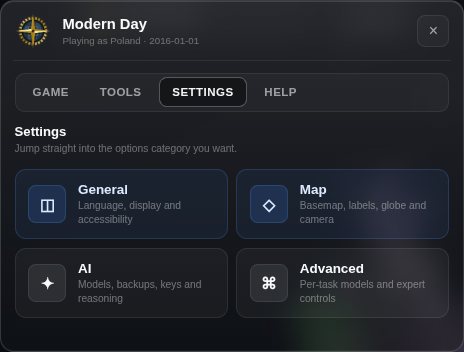 The game menu's Settings tab — the four tiles open the settings workspace at that section.
Press ☰ and you get the game menu with four tabs — Game, Tools, Settings and Help. Game holds the current campaign and Game Management (switch, duplicate, import or manage campaigns). Tools puts cheats, the events timeline and the AI debug console one click away. Help has the wiki, bug reporting and the community links.
Choosing one of the four Settings tiles opens the full-screen workspace with that section selected:
| Section | Holds | |
|---|---|---|
| ◫ | General | Language, display, accessibility |
| ◇ | Map | Basemap, label font and labels, globe, terrain, camera |
| ✦ | AI | Models and backups, connections, reasoning, AI requests, generation behaviour |
| ⌘ | Advanced | Per-task models, telemetry, network, diagnostics |
Where things are
| I want to… | Go to |
|---|---|
| Set my API key | ☰ → Settings → AI |
| Add a backup model | ☰ → Settings → AI → + Add a backup |
| See how many requests I have used today | ☰ → Settings → AI → AI requests |
| Change language | ☰ → Settings → General |
| Turn off the globe | ☰ → Settings → Map |
| Change the basemap | ☰ → Settings → Map |
| Open cheats | ☰ → Tools → Cheats |
| Read the wiki | ☰ → Help → Wiki |
| Switch campaign | ☰ → Game → Game Management |
| See what the AI cost | ☰ → Tools → AI debug console |
AI
The only part you must set up. Covered in full in connecting an AI provider and AI providers and models.
Models and connections
The AI section opens on a list headed Models. Each entry is a model on a connection:
| On a connection | |
|---|---|
| Provider | Gemini, OpenAI, Anthropic, OpenAI Compatible, Anthropic Compatible. |
| API Key | Yours. Stored locally, never sent to an Open Historia server. |
| API endpoint | Only for the two Compatible providers. |
| Custom parameters (JSON) | Raw fields merged into the request body. An escape hatch — you do not need it. |
| Strict tool schema | For OpenAI-compatible endpoints that handle structured output badly. Toggle it if turns keep failing to parse. |
| On an entry | |
|---|---|
| Model | The model name. Suggestions come from the models you have used recently. |
| This model only | Custom parameters for this model alone, and How the AI answers — the structured-output method to try first. |
Several entries can share one connection, and the list is tried from the top: when one model runs out or cannot answer, the next one takes over. See backup models. Model reasoning sits under the list and applies to every entry.
A first Gemini connection fills the list with Google's defaults — gemini-3.5-flash-lite, with
gemini-3.1-flash-lite as its backup. An OpenAI entry with no model runs gpt-5.6-luna; an
Anthropic one runs claude-haiku-4-5.
AI requests
A free key allows a few hundred requests a day, and this section decides how many the game spends. It shows how many have been used today (counted on this device, from midnight Pacific time, which is when a Gemini key's day begins) and what your last time skip cost.
| Setting | |
|---|---|
| Save AI requests | On by default. A time skip is one request, two when there is something to check afterwards, and never more than three. Off gives the most thorough turns, for a key with no daily limit: every check after a skip makes its own request, the model may look things up, and a flawed answer is sent back to be redone — a busy skip can use twenty requests or more. |
| Requests a day your key allows | 500 by default. Used only for the count and to keep background AI off the end of your day. The game never stops you at the limit; your provider does. |
| Background AI | On by default. While you are not skipping time, countries may write to you unprompted, forces may reposition, agents may file extra reports, and a country you look at gets its first intelligence reading. Off: the game only calls the model when you do something. |
| Background requests a day, at most | 30 by default. Background AI also stops by itself once less than a tenth of your day is left. |
| Checks after a time skip | Five switches — move units to match the events, mark occupied and disputed land, take repeats and filler off the timeline, keep the Projects board in step, collect your agents' reports. With Save AI requests on they share one request; turning one off makes it smaller, and saves the request only if it was the only one with work to do. |
On beta there is a sixth check, Put new structures on the map: bases, shipyards, data centres and ground stations appear where the events built them.
Generation behaviour
| Setting | |
|---|---|
| Limit AI generation | Off by default. On, the game stops waiting and falls back to canned events when the model goes quiet — five minutes of silence part-way through an answer, or fifteen with no answer at all. It measures silence, not elapsed time: a model that is still writing is never interrupted. Worth turning on for a local model, or if you have had turns hang. |
| Generate long time skips in segments | Off by default. On, skips of more than a few months are generated as several shorter requests merged into one round — slower and costlier, but far less likely to time out on a hosted provider. See time and turns. |
| AI lookup functions | On by default, but only used while Save AI requests is off. The model can call functions — exact power and region names, a region's neighbours, the war ledger, a chat — in up to three extra requests per task. Needs a provider that supports function calling. |
| Show time skip events as they are written | On by default. A skip opens the Events panel and fills it as the model writes. Off: the round appears at the end. The turn is the same either way, and Gemini arrives all at once regardless. |
| Batch background AI tasks | Anthropic only, off by default. History consolidation runs through the Message Batches API at about half the price and lands a little later. |
On beta, Player focus sits here too — how much of each time skip is about your own country, stored with the game rather than the device. See time and turns.
General
UI language translates the interface. Applying it reloads the page. Twenty-two languages ship fully translated — Arabic, Bengali, Chinese, Dutch, French, German, Hindi, Indonesian, Italian, Japanese, Korean, Persian, Polish, Portuguese, Russian, Spanish, Swedish, Thai, Turkish, Ukrainian, Urdu and Vietnamese — and the list marks them. In those, the interface costs no AI requests at all; only content a scenario's author or a player wrote (scenario names, polity names, custom events) is sent to your model to translate, once. Other languages are still offered, translated by your model as panels are met.
AI chat language is separate: it is the language leaders and events are written in. You can run an English interface with French diplomacy, or the reverse.
Fullscreen is under Display, and Reduce motion under Accessibility. Reduce motion turns on both camera switches in the Map section at once — turn it on first if the game feels busy or you are prone to motion sickness.
Map
| Option | |
|---|---|
| Basemap | The imagery under the political colours. Scenario default uses whatever the scenario's author chose; fourteen others override it. See the world map. |
| Country label font | Empty uses the scenario's font. Any font installed on your computer works. |
| Hide country labels | Removes country names from the map. |
| 3D Globe | Sphere instead of a flat map, with a real day/night terminator. Marked experimental. |
| 3D Terrain | Elevation with heavy exaggeration. Marked experimental, and flat map only. |
| Disable idle globe rotation | Stops the globe turning on its own. |
| Disable camera movement during events | Stops the camera flying to each event during the staged reveal. |
Switching the globe on or off shows the game's loading screen while the map redraws from nothing.
Advanced
| Setting | |
|---|---|
| Per-task models | Point a task at one entry in the list: a cheap model for background tasks, a strong one for the jump itself. The task tries its pick first, then the list from the top. The single most effective way to cut cost without making turns worse. |
| Record AI telemetry | Keeps every AI call — prompt, answer, model, tokens, latency, validation verdict — for the AI debug console (200 across sessions). Off: the console sees this session only. |
| Rate AI generations | Off by default. A small 1–10 bar after each time skip, Game Master edit and interactive event, stored beside the call in the console. Feedback for you, not sent anywhere. |
| Let other devices connect | Under Network, desktop only. The server answers this machine only until you turn it on. See hosting a server. |
| Keep a diagnostics log | Under Diagnostics. On by default. 📋 Copy log, 💾 Save log file, or 💾 Save log file + game to send with a bug report; the 💾 Save logging file button on a failed turn or advisor reply saves the same file with that failure attached. 🔎 View log reads it in place and Clear empties it. Off means nothing is recorded and the stored log is thrown away. |
| Detailed logging | Off by default. See below — please turn it on if you are going to report a bug. |
What to change first
- Set up your AI provider. Nothing else matters until this is done.
- Look at AI requests if you are on a free key — the defaults are chosen for one, and the counter tells you what a turn costs.
- Turn on Limit AI generation if you are running a local model.
- Try the 3D globe. It is the better way to look at the world, and it costs little.
- Leave 3D terrain off unless you specifically want it — it is the most expensive thing in the game to render.
- Reduce motion if the interface feels restless.
Where settings are stored
All of it lives in your browser's local storage, or in the desktop app's own profile. Settings are therefore per device and per install, not per save — moving a campaign to another machine does not carry your API key with it, which is deliberate.
It also means the beta build keeps entirely separate settings from the stable one. Installing beta does not inherit your stable API key; you will need to paste it in again.
Detailed logging
☰ → Settings → Advanced → Diagnostics → Detailed logging, off by default.
The ordinary log is a running record of what you did — saves opened, orders queued, turns taken — and anything that went wrong. Detailed logging records everything, and it is the difference between a bug report someone can act on and one that just says the game misbehaved.
Please turn it on before reporting a bug
If you are about to report something — especially anything about the advisor, diplomacy or a turn going wrong — switch it on, reproduce the problem, then save the log as a file and attach it. A maintainer can very often find the cause immediately from a detailed log and not at all from a normal one.
What it adds
| Normal | Detailed | |
|---|---|---|
| Detail per entry | 600 characters | 20,000 |
| Stack frames | 1 | 8 |
Both keep up to 5,000 entries and 1 MB; the difference is what gets recorded, not how much is kept.
And it records what the normal log leaves out:
- Every message to and from your advisor, in full.
- Every diplomatic message, in full, with who said it to whom.
- Letters the advisor drafted, and the notes countries send you.
- Every AI task and what it answered, and why an answer was rejected.
- What each turn changed in the world.
- Every server request and every save, with sizes.
The conversations are deliberate. The bugs people actually report about diplomacy are about the content of an exchange — "it forgot what I told it", "it replied as the wrong country", "it drafted a letter and sent something else" — and a log that records only that an exchange happened cannot settle any of them.
What it means for your privacy
It quotes considerably more of your campaign than the normal log: your conversations, in full. That is all fiction you or the model wrote, but it is yours, so read the log before you paste it somewhere public.
API keys are never recorded. Nothing on this path reads a key deliberately, and every entry is run through a redaction pass as it is written — not at export time — so a key that arrives by accident inside a provider error or a URL is scrubbed before it is ever stored.
Both switches persist across restarts and across campaigns.
Next
- The interface — the rest of the screen.
- AI providers and models — choosing a model properly.
- Troubleshooting — when a setting does not fix it.
Open Historia is under active development on two channels, and this
wiki is written by hand — a page can fall behind a release. Last checked against the game on 2026-09-24 · main e62a1c55 · beta 2f48a6c2. If something
here does not match what you see in the game, trust the game and
say so on Discord.