 Open Historia
Saves, Rollback and Sharing
How campaigns are stored, how to undo, how to clone, and how to move a game or scenario between machines.
Open Historia saves continuously. There is no save button, and there is no way to lose an hour of play to a crash.
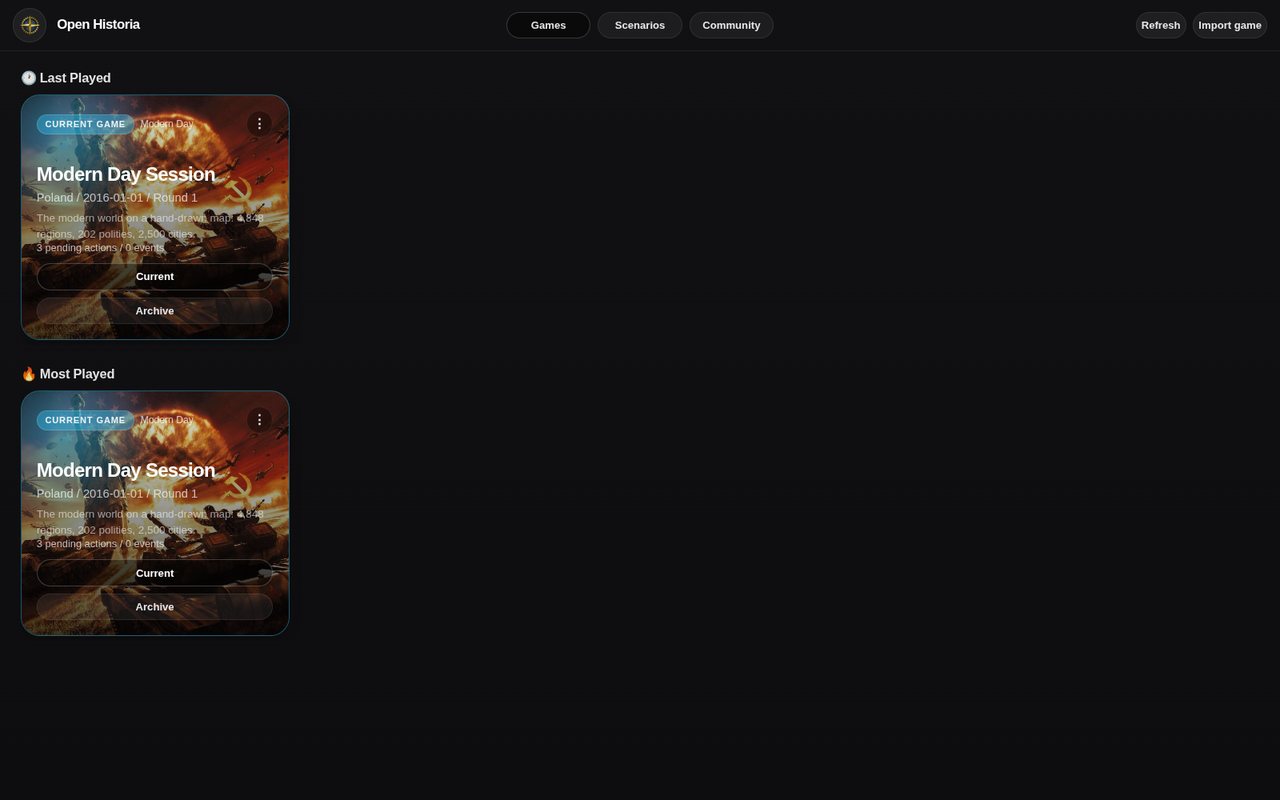 The Games tab. Each card carries its country, date and round; Current opens it, and its ⋮ holds Edit, Clone and Export.
Games and scenarios
Two different things, and the distinction matters:
- A scenario is a world — the map, the borders, who owns what, the start date, the available troop types, the author's house rules. It never changes when you play.
- A game is one playthrough of a scenario. It starts as a copy of that world and diverges from the first turn.
One scenario seeds as many games as you like. Editing a scenario later does not touch games already running on it.
Autosave
Every time skip writes the whole campaign — world state, game state, events, your order queue, chat history and the colour palette — and then captures a rollback snapshot.
There is nothing to do and nothing to remember. Closing the game mid-turn loses at most the orders you had typed but not queued.
Undo and rollback
↩ Undo last turn, in the time panel, restores everything to how it was before the last jump. The game keeps 12 turns of snapshots, so you can step back repeatedly. The panel tells you how many are available.
Roll Back Turn, in the cheats panel, jumps straight to the start of any earlier turn in the stack and discards everything after it.
Both restore the full campaign, not just the map — the events, the conversations, your queued orders, your agents' reports and any papers that reached you all come back as they were. Your standing goal is yours rather than the turn's, so it stays as it is now.
Use undo freely. See time and turns.
Cloning
Both games and scenarios can be cloned from their card in the library — a game from its ⋮, a scenario with Clone Scenario.
Cloning a game is the closest thing to a manual save slot: fork the campaign before doing something reckless, and you keep both branches. Cloning a scenario gives you an editable copy of someone else's world.
Where saves live
Desktop and self-hosted — files on disk, in the app's own data directory. You can back the directory up like any other folder.
Browser — in your browser's storage. This is the one to be careful with: clearing site data clears your campaigns. The game will ask for persistent storage permission when you first play, and you should grant it.
Android — on the phone, in the app's storage.
The beta desktop build keeps a completely separate library from the stable one. Installing the beta cannot touch your stable campaigns, and vice versa.
Moving a campaign between machines
Games export as one zip. On a game's card, ⋮ → Export saves <name>-game.zip: the world,
the clock, events, chats, actions, the advisor's conversation, prompts, colours, flags, tags,
intercepts — and every rollback snapshot, so the campaign can be continued and undone on the other
side, not just looked at. The card says so while the zip is being built. Import game, in the
Games tab's header, brings one back; it lands right beside your current game, marked
(Imported) if its name collides with one you already have.
The scenario travels only when it has to. A built-in scenario is not included (everyone has it), nor one that came from the Community Hub (it can be fetched again). A map too large to carry — over 32 MB — is left out rather than crashing the export; the game still exports, and the receiver ends up in the same position as a game whose scenario is missing. A game whose scenario is gone is still listed, opens in the editor, and can still be exported.
Scenarios export and import as a .zip bundle carrying the map, cities, colours, flags and
any custom basemap, or as plain .json. Use Import JSON in the Scenarios tab's header, or the
Download buttons in a scenario's editor drawer. Create Scenario starts a blank one from the
base template and drops you straight into its editor. This is also how you
publish to the Community Hub.
On the stable Android app a file cannot be saved, so export is not offered there.
On beta the Android app exports too, through Android's share sheet.
Syncing between devices
Only in the browser build at openhistoria.com/play/, and only if you sign in. The desktop app and a self-hosted server do not sync — they keep files on disk.
Signing in. There is no password. Use the sign-in chip in the top-right corner and either enter an email address to be sent a magic link, or sign in with Google. Both land you in the same account.
What syncs. Your games and your scenarios, with the library listings that order them. Map-editor documents and custom basemaps do not sync yet. Sync runs on sign-in, then every 20 seconds, and again whenever you switch away from the tab.
How the encryption works. On your first ever sign-in the browser generates a random encryption key, and every game and scenario is encrypted with it before it is uploaded. The server only ever receives ciphertext — it never sees a save in the clear.
That key is then held by the server in wrapped form, which is what lets you sign in on a second device and read your own campaigns there. So this is not a zero-knowledge system: it protects your saves in transit and at rest, and it means a database leak is useless on its own, but the service can obtain the key. Do not treat it as a secret vault.
The one thing that can lose work. If the same game is edited on two devices without syncing in between, the copy already on the server wins and the local one is replaced. There is no merge and no prompt. In practice: let a device finish syncing before you pick up the same campaign somewhere else. Playing different games on different devices is entirely safe.
Large scenarios may not upload. A scenario carrying its own map data can exceed the current size limit and is skipped, with a warning in the browser console, until larger blob storage is switched on. Its games still sync.
Your API key is never synced. Provider settings are per device.
Archiving
Archive, on a game's card, takes it out of the main library view without throwing it away, and the same button becomes Unarchive to bring it back. Useful once you have accumulated a dozen half-finished campaigns.
What a save contains
For the curious: five documents per game — the world, the game state, the events, the actions queue and the chat history — plus siblings for colours, flags, tags, rollback snapshots, advisor history and intercepts, and the map geometry.
Intercepts are the exception to "it is all just JSON": they are encrypted at rest with a key unique to the campaign.
Next
- Time and turns — undo in context.
- The community hub — sharing scenarios.
- Hosting a server — where the files actually live.
Open Historia is under active development on two channels, and this
wiki is written by hand — a page can fall behind a release. Last checked against the game on 2026-09-24 · main e62a1c55 · beta 2f48a6c2. If something
here does not match what you see in the game, trust the game and
say so on Discord.