 Open Historia
The Community Hub
Download scenarios other players have made, and publish your own.
The Community Hub is where scenarios are shared. It is the Community tab of the main menu, and it is where every scenario except Modern Day comes from — including the official presets.
You will also see it called the Scenario Hub; they are the same thing.
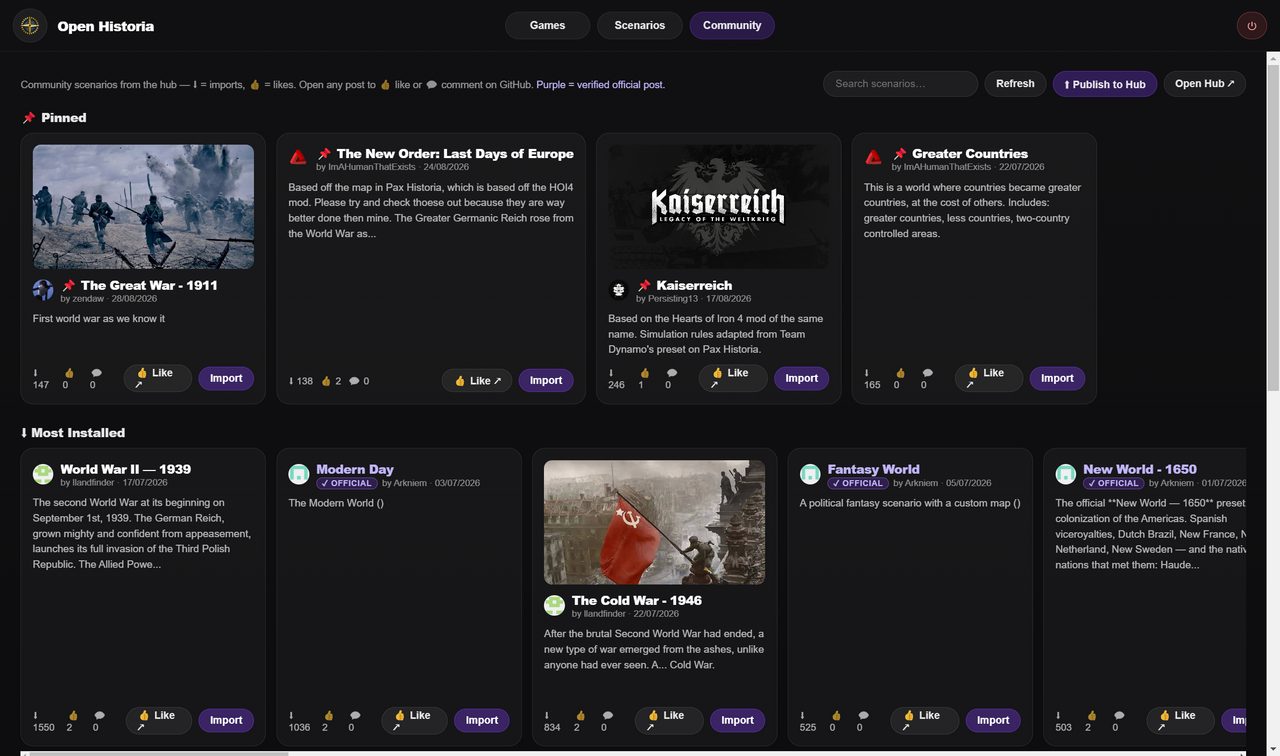 The hub's shelves. Install counts and likes are real, and a ✓ Official badge marks a verified official post.
Browsing
The tab is laid out in shelves:
- 📌 Pinned — the official and featured scenarios. Only hub collaborators can pin something, so this shelf is curated rather than gamed.
- Most installed — by real install counts.
- Most liked — by reactions on the post.
- Most recent — newest first.
A scenario with a ✓ Official badge was posted by a hub maintainer — verified by GitHub, not by what the title says. Anything without one is community work, which is most of the hub and where the more inventive scenarios tend to be. Posts that are not valid scenarios are hidden.
Click any scenario for its detail view: description, cover image, what it contains, and ▶ Import & Play.
The official presets
| Scenario | Start |
|---|---|
| World War II | 1939 |
| Medieval | 1200 AD |
| Rome | 117 AD |
| Mongol World | 1300 AD |
| New World | 1650 |
| Bronze Age | 1200 BC |
That list is not exhaustive — Modern Day and a Fantasy World preset carry the official badge on the hub as well, and the pinned shelf changes as new work is featured. Treat the hub itself as the authority rather than this table.
All one click to import.
Importing
Import & Play downloads the bundle, installs it into your library, and starts a game. From then on it behaves exactly like a built-in scenario — it is yours, it works offline, and you can edit or clone it.
A bundle carries the map, cities, colours, flags and any custom basemap the author used — including a map uploaded as a tile archive rather than drawn in the editor — so what you get is what they built. A game you start from an imported scenario remembers where it came from, so exporting that game later does not carry the map inside it: the receiver can fetch it from the hub.
Updates
If an author ships a newer version of a scenario you imported, an ⬆ Update button appears on its card in your Scenarios tab.
Updating replaces the scenario in place. Games already running on the old version keep working — a game is a copy taken at the moment you started it, so it is not disturbed.
Publishing your own
Build a scenario in the map editor, then publish it from its card. The game exports the bundle locally and opens the hub's post form with the details filled in; you attach the bundle and post it.
Some things worth doing before you publish:
- Write the description properly. It is what people read on the card.
- Set a cover image. Scenarios without one get skipped.
- Fill in the World Before Round One briefing. It is what stops a campaign on your map feeling like the world began at turn one.
- Set the deployable troop types. No air force in 1200 AD.
- Consider the Simulation Rules field. House rules injected into the world's instructions are what make an alternate-history scenario actually behave like its premise.
Basemaps and flags
The hub carries more than scenarios. Basemaps are posted separately and appear in the editor's Community tab, and flag packs can be shared and installed the same way. A scenario bundle can also carry its own basemap.
How it works underneath
The hub is a GitHub repository — Open-Historia/Open-historia-scenarios — where every issue is
a posted scenario. Likes are GitHub reactions; the pinned shelf is a label only collaborators can
apply.
Listings are cached for five minutes, so a brand-new post may take a moment to appear.
Install counts come from a small counter service, deduplicated per person. It records that a scenario was imported and nothing else — no game data, and nothing identifying.
Because it is GitHub, you can browse the hub in a web browser, and a scenario you cannot reach in-game can always be downloaded from the repository directly and imported with the library's Import button.
Next
- The map editor — building something worth publishing.
- Starting a game — playing what you imported.
- Saves and rollback — importing and exporting by hand.
Open Historia is under active development on two channels, and this
wiki is written by hand — a page can fall behind a release. Last checked against the game on 2026-09-24 · main e62a1c55 · beta 2f48a6c2. If something
here does not match what you see in the game, trust the game and
say so on Discord.