 Open Historia
The Interface
Every panel, button and badge on screen, and what each one is for.
Almost the entire screen is map. Everything else sits around the edges and gets out of the way when you are not using it.
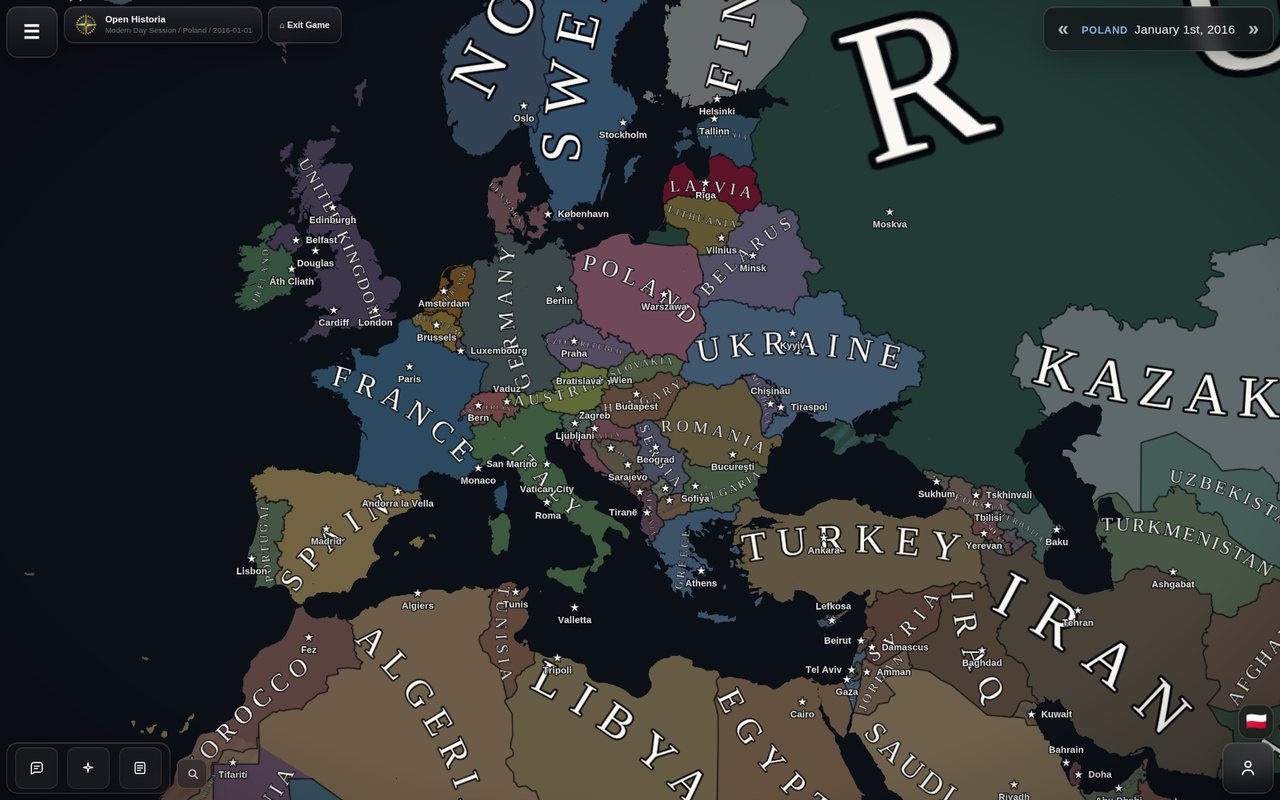 The game menu, session pill and date pill along the top; the toolbar bottom left; your flag and the advisor bottom right. Everything else is map.
The edges at a glance
| Where | What |
|---|---|
| Top left | ☰ the game menu, the session pill — scenario, country, date — and ⌂ Exit Game. |
| Top right | The date pill, with « events and » time skip. |
| Bottom left | The toolbar: Chat, ✦ Actions and Projects & Operations, with search beside it. |
| Bottom right | Your flag, and the Advisor button, which opens a drawer with Advisor and Stats. |
Panels overlap in a fixed order, so opening the advisor never buries the thing you were reading, and the main menu always comes out on top. On a phone the whole interface fits the screen and the advisor drawer can be closed again like any other panel.
The map itself
Clicking things is the primary way you interact with the world.
- Click the map → a card for the country and the region under your cursor. The country row has 💬 to open a diplomatic chat, ⧉ to copy its name and ⓘ to open its panel; the region row names the region.
- The country panel → flag, details, alternative names, related events filtered by importance (All, Major, Minor), and an Advisor Report — an AI intelligence reading — on request.
- Click a unit → an intelligence card describing the formation — what it is, whose it is, how strong, and what it appears to be doing.
- Click a city or structure → its name, population, and what it is.
Drag to pan, scroll to zoom. See the world map for what the colours, stripes and labels mean.
The date pill and time
Top right, always visible: your country and the current in-game date.
- » opens the time skip panel — fixed jumps from six hours to a year, a custom amount, auto-jump, ↩ Undo last turn, and today's AI request count.
- « opens the Events panel — the events from the last jump, replayed one at a time, with the map animating as each lands, and ✋ Intervene here to stop the round where you want to act.
Full detail in time and turns.
The toolbar
Three buttons, bottom left.
Chat
Diplomacy. Two tabs:
- Diplomacy — every conversation you are part of. One-to-one threads with a country, or group threads with several. Countries open threads with you unprompted, and unread ones are badged.
- Spy — everyone else's conversations, as far as your intelligence service can read them. This is also where you deploy, recall, expel and turn agents.
✦ Actions
Your order queue for the coming turn, under your standing goal. Write orders in plain English, get AI suggestions, refine a rough draft into a proper order, and delete anything you change your mind about. Only planned orders show; they clear as the turn resolves them. See giving orders.
Projects & Operations
The board of long-running efforts — research programmes, construction, military and covert operations, campaigns — that span many turns. You do not add to it by hand: events, your agents and your advisor write it. See projects and operations.
The advisor drawer
The Advisor button, bottom right, opens a drawer you can resize by dragging its left edge. It has two tabs.
Advisor — a chat with your own analyst. It reads the real game state and answers about it, in markdown, sometimes with charts. Ask it anything about your position.
Stats — the national stat sheet. Two sub-tabs, Diplomacy and Economy: relations, agreements and conflicts on one, the economy, strategic indices, stability, population and your intelligence rating on the other. It retargets to whatever country you last clicked, so it doubles as a way to read anyone.
See the advisor and national statistics.
The game menu
☰, top left, opens the game menu, with four tabs:
- Game — the current campaign and Game Management: switch, duplicate, import or manage campaigns.
- Tools — Cheats, Events / Timeline and the AI debug console, one click away.
- Settings — four tiles, General, Map, AI and Advanced, each opening the full-screen settings workspace at that section.
- Help — the wiki, bug reporting and the community links.
Search
The 🔍 button beside the toolbar finds places by name as you type and flies the camera to them. The game's own countries and cities come first, under the names they have in your campaign, then real-world places from an OpenStreetMap search. It only moves the camera — it does not select or change anything.
Cheats
☰ → Tools → Cheats is the game master's toolbox: the GM console, standing reminders every AI is told, the event editor, interactive events, the history document, rolling back turns, annexing territory, editing or creating countries, inspecting regions, the Force Manager, difficulty, switching which country you play, and map features. See cheats and the GM console.
The main menu
The session pill's ⌂ Exit Game returns you to the library, which has three tabs:
- Games — your campaigns, by last played and most played.
- Scenarios — the worlds you can start new games on, plus Create Scenario.
- Community — the Community Hub.
If the screen is blank
A full-screen warning means WebGL is unavailable — the map cannot render without it. On a desktop this usually means graphics drivers or a browser flag. See troubleshooting.
Next
- The world map — reading what you are looking at.
- Time and turns — the button that actually advances the game.
Open Historia is under active development on two channels, and this
wiki is written by hand — a page can fall behind a release. Last checked against the game on 2026-09-24 · main e62a1c55 · beta 2f48a6c2. If something
here does not match what you see in the game, trust the game and
say so on Discord.